The MCL65-Fast is a drop-in replacement for the 6502 CPU however it does not emulate the processor. Instead it allows you to run C code compiled on the Arduino GUI to run directly on the Teensy 4.1’s 32-bit ARM A9 which is an 800Mhz+ superscalar CPU. This provides the ability to write C code to run on this fast CPU in the place of the vintage computer’s 6502!
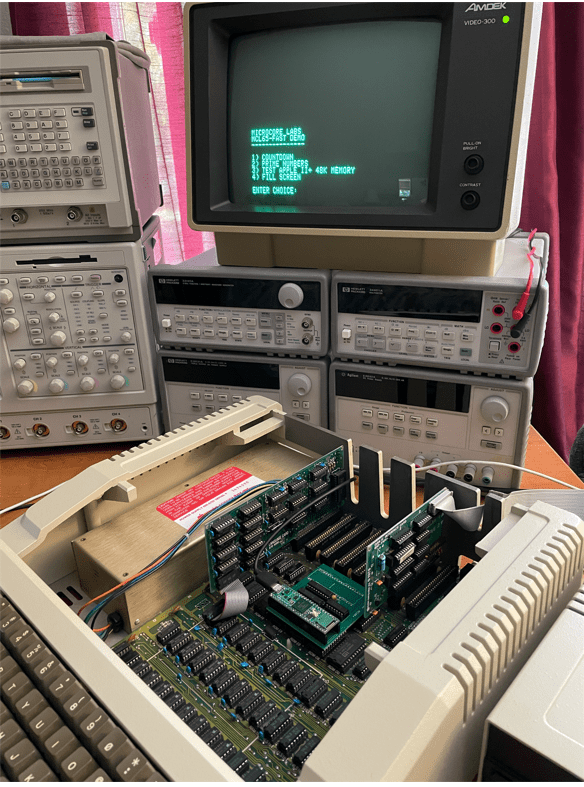
I uploaded a YouTube demonstration which uses it in an Apple II+ seen here:
The MCL65-Fast has control over the 6502 bus so it has access to all of the motherboard’s peripherals and slots which include the keyboard, video, sound, and anything plugged into an expansion slot. To access the Apple II video and keyboard, I have included a printf, and scanf, and other functions to display characters to the Apple II’s video as well as access its keyboard. With these functions you can write programs using regular C code and use printf and scanf to accept input and display the results!
The YouTube demo video shows how fast the MCL65-Fast runs inside of an Apple II+. I first show the board running the MCL65+ 6502 in cycle-accurate emulation mode and then download the MCL65-Fast code which demonstrates a few small functions which show the incredible speed!
The MCL65-Fast would be fun for people who would like to develop programs for the Apple II or other 6502 computers while using the modern and easy to use Arduino tools. It is also fun to see these vintage machines running at ridiculously fast speeds!
The following are some notes on how to install and configure a system to load code into the MCL65+.
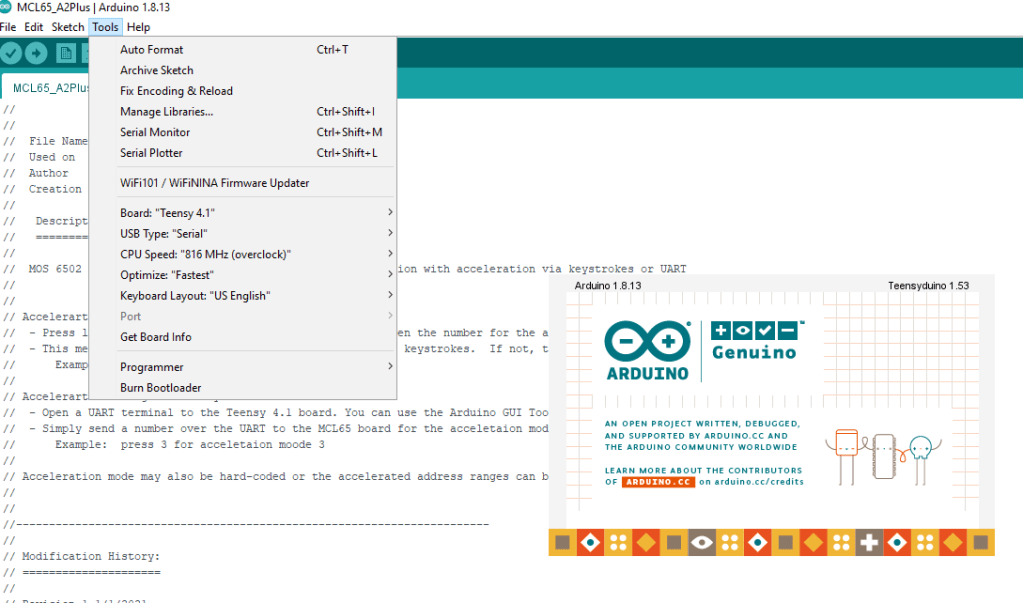
ONE: The first step is to load a special version of the Arduino GUI and the Teensyduino tool on top of it. Personally, I am running Arduino GUI version 1.8.13 on my computer.
TWO: The MCL65+ is implemented using a Teensy 4.1, so the Arduino tools need to be configured for this board. Select the Teensy 4.12 board, the CPU Speed set to 816Mhz, and the Optimize to “Fastest”.
THREE: I have uploaded a few versions of the MCL65+ to GitHub which include a generic 6502 as well as a version for the Apple II+. Each of them have the ability to run in accelerated modes.
FOUR: Remember to cut the solder-pad jumper indicated below so that the MCL65+ and Teensy 4.1 board can be powered using the computer’s power supply alone. If this jumper is not cut, then there will be a connection between the USB and computer power supplies!
FIVE: The MCL65+ supports four acceleration modes. Modes 0,1,2 and 3.
0x0 – All 6502 bus cycles executed using external memory accesses to the motherboard – No acceleration 0x1 – Reads use cycle accurate internal memory and writes pass through to motherboard – No acceleration 0x2 – Reads accelerated using internal memory and writes pass through to motherboard – Accelerated mode 0x3 – All reads and writes use non-cycle accurate accelerated internal memory – Greatest acceleration mode
Please note that the computer’s video address range cannot be accelerated to mode 0x3 because in this mode writes do not go to physical memory.
The acceleration mode can be changed in three ways: 1) statically in the C code. 2) Using the JTAG UART. 3) Using a series of computer keyboard keystrokes which is currently only supported on the Apple II.
Method 1 – Change acceleration mode statically in the C code. The code snippet for the Apple II+ version is below. You can set the mode to a specific number, or you can set it to ‘mode’ which allows it to be changed with either the UART or the keystrokes.
Method 2 – Change acceleration mode using the JTAG UART. Using a serial terminal such as the Arduino’s Serial Monitor or TeraTerm, simply send type the digit 0,1,2 or 3 to change the acceleration mode.
Method 3 -Using a series of computer keyboard keystrokes which is currently only supported on the Apple II. Press a keystroke sequence of the left-arrow(L), right-arrow(R), left-arrow(L), then the number to change the acceleration mode. Note that this method only works if the Apple II program or game is scanning for keystrokes. If not, then the UART method of acceleration must be used. For example: press LRL3 to enter acceleration mode 3
SIX: Partitioning address ranges. As seen above, you can allocate different acceleration modes to different address ranges. In the example above you can see the range 0x0400 to 0x0C00 was set to acceleration mode 0x1 which means all CPU writes will go out to the physical video RAM on the motherboard. Other ranges specific to the Apple II were partitioned and assigned their own acceleration mode. You can partition these ranges to any target computer. The default is acceleration mode 0x0 in which all 6502 accesses go out to the computer’s physical motherboard which is identical to the original 6502.
Notes:
When accelerating the Apple II, the disk drive will not be able to work. This is because the firmware driver uses software loops which are dependent on the speed of the CPU. When accelerated, these loops run too fast for the disk drive to respond!
Be careful not to accelerate accesses to video memory ranges or else the display will no longer work.
Some computers use software to draw to the display which may be dependent on the speed of the CPU. No acceleration could be achievable in this case.
To achieve the maximum acceleration, all RAM and BIOS ROMs should be copied into the internal memory and use acceleration mode 0x3. Only the computer’s video RAM should use mode 0x2.



 MicroCore Labs